Configuring three-position switch input
Three-position switches are typically mapped to three different simulator variables that expect either 0 (for off) or 1 (for on). Despite controlling three different variables, only two input configurations are used in MobiFlight to create the mapping between the switch and simulator.
The following steps demonstrate how to configure a three-position switch to control the STBY BATT switch in a Cessna 172 in Microsoft Flight Simulator 2024.
Tip
The steps for using a switch in an X-Plane project are similar. Use the X-Plane DataRef type when configuring the Sim Variable tab.
Add a new input config
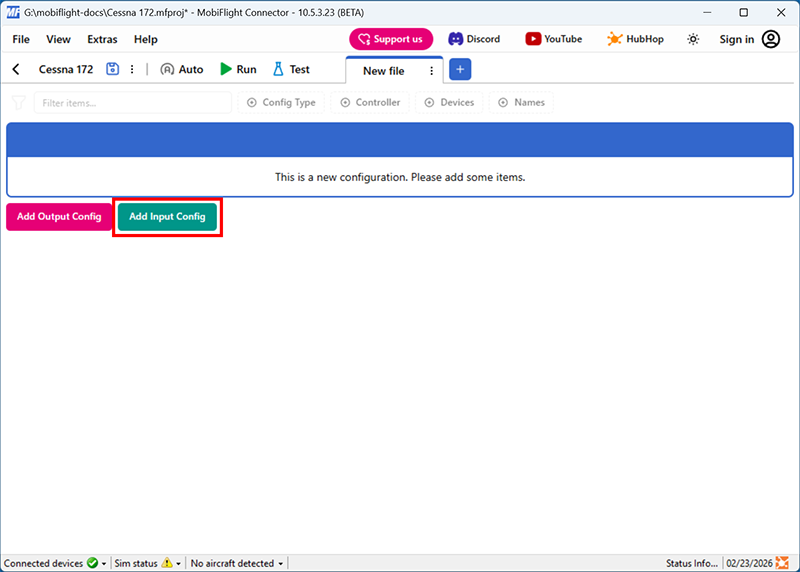
Click the Add Input Config button in the main MobiFlight window to open the input configuration dialog.
Select the board and device for the input
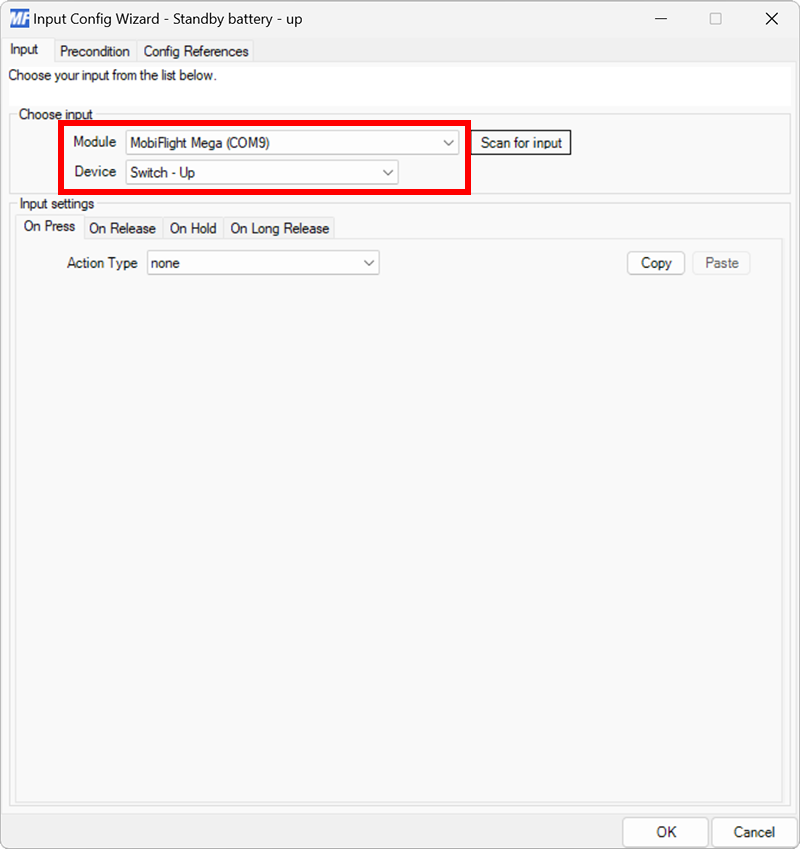
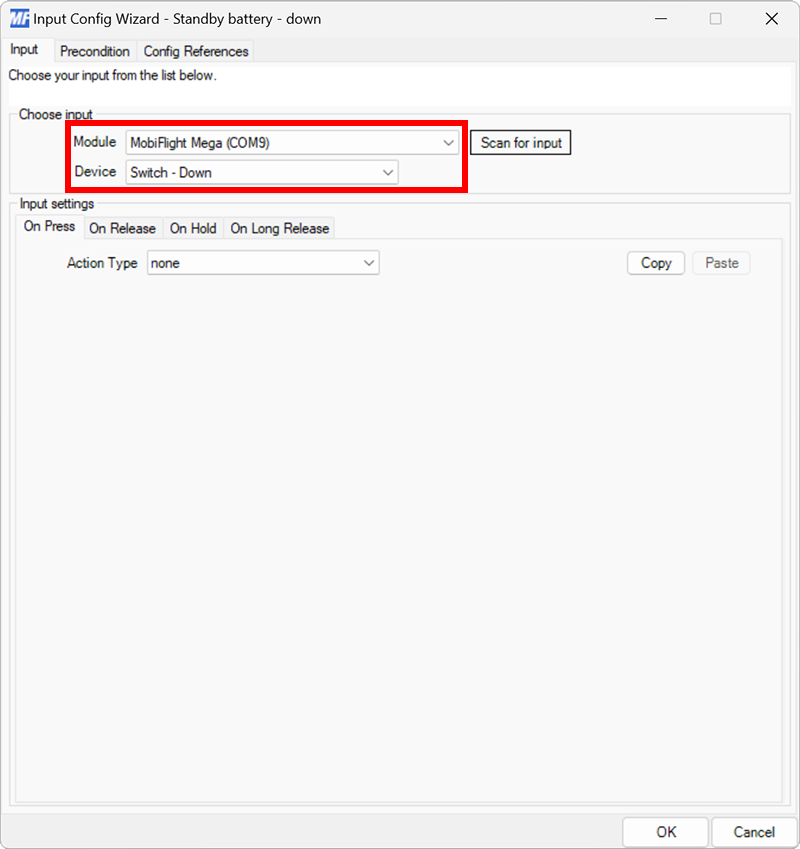
On the Input tab, use the Module and Device dropdowns to select your connected board and switch.
Alternatively, press the Scan for input button and toggle the connected switch to automatically detect and select the correct switch.
Set the On Press action type and filter the presets list
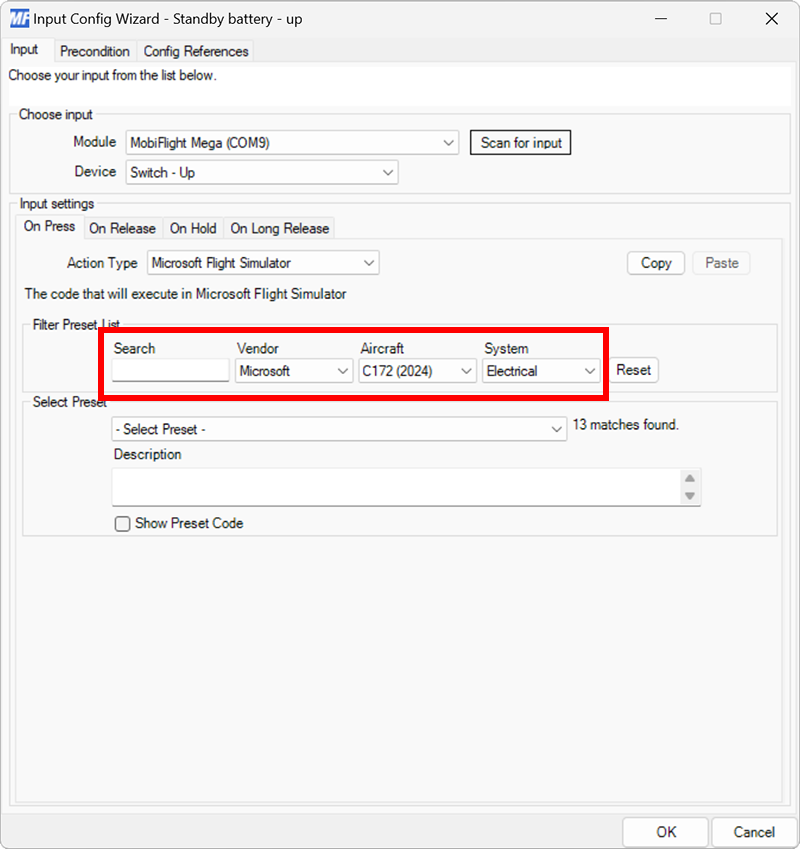
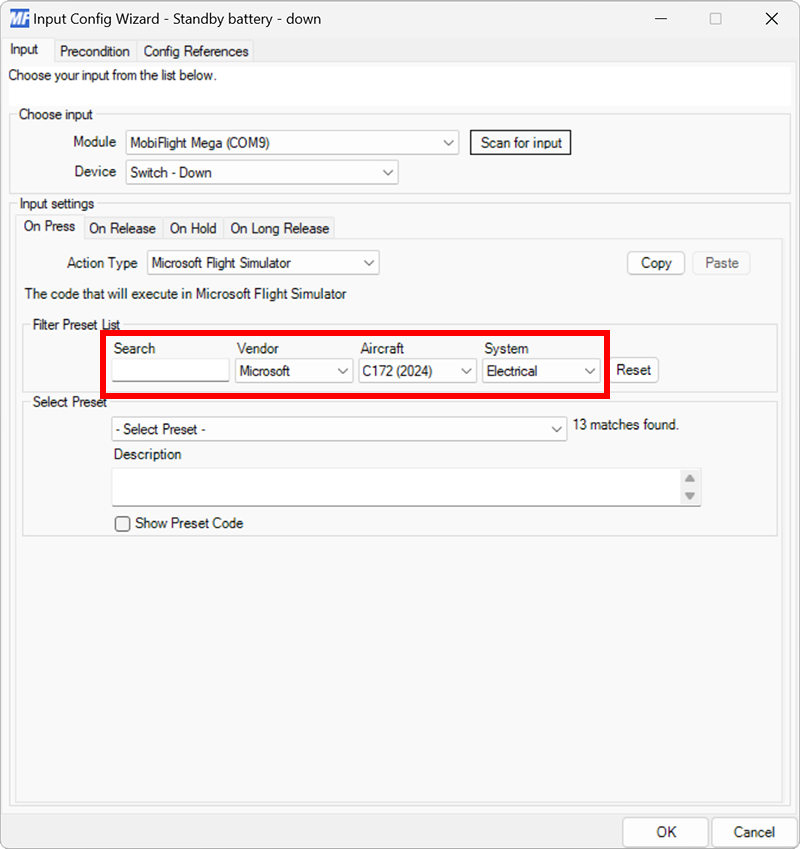
On the Input tab, select the On Press input setting tab. Use the Action Type dropdown to select Microsoft Flight Simulator. Then use the Filter Preset List dropdowns to filter by Microsoft, C172 (2024), and Electrical.
Select the standby battery arm preset
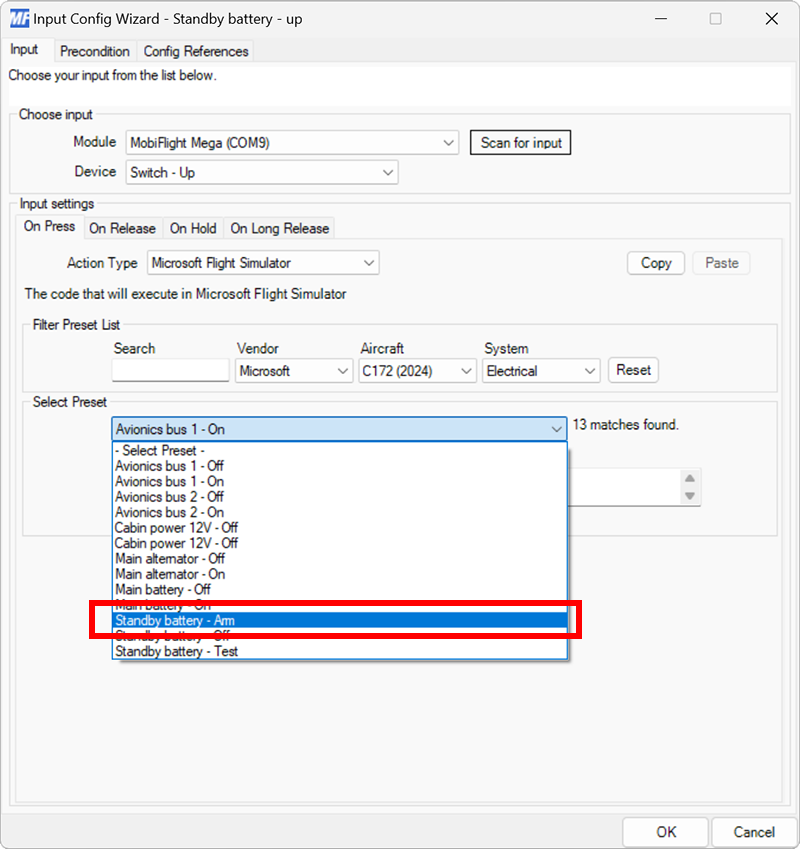
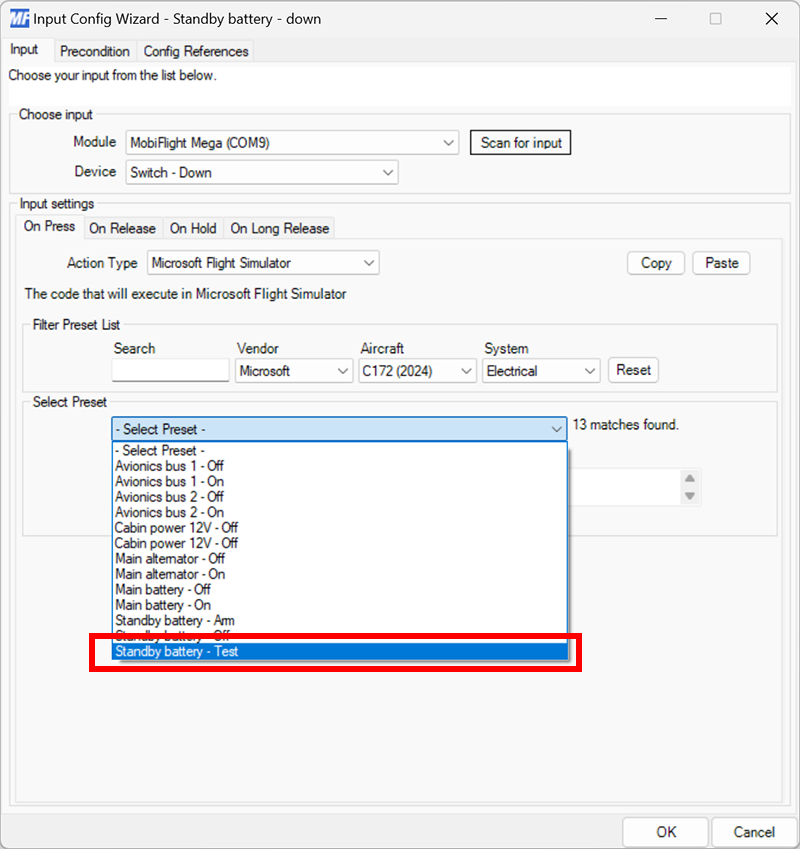
Use the Select Preset dropdown to select the Standby battery - Arm preset.
Configure the On Release action
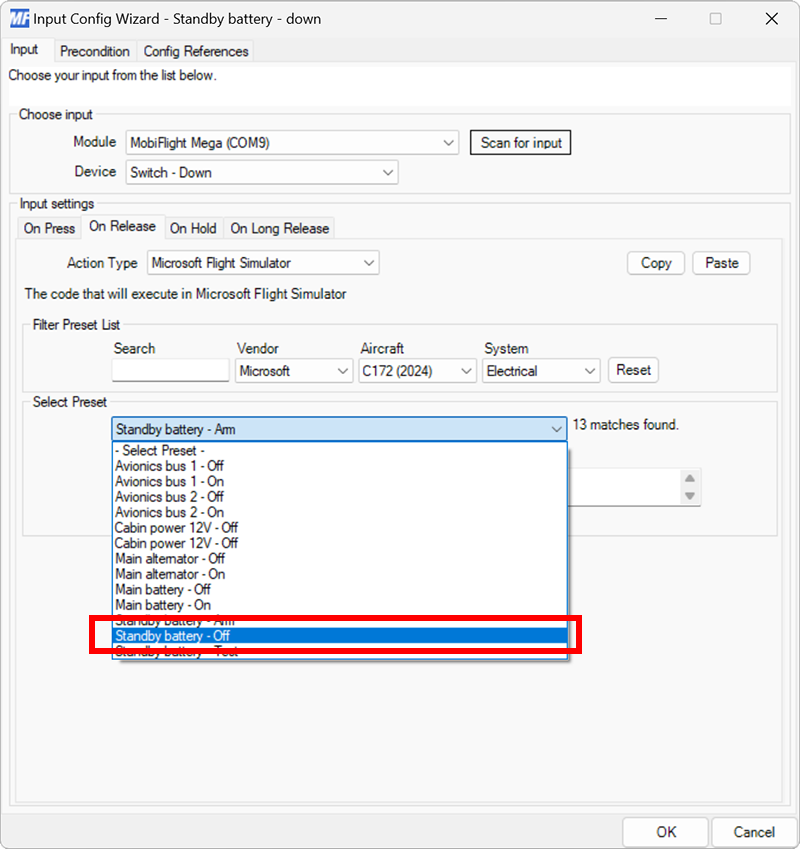
Repeat steps 3 and 4 for the On Release tab, selecting Standby battery - Off for the preset.
Note
For three-position switches, the On Release event is always set to the event that maps to the middle switch position.
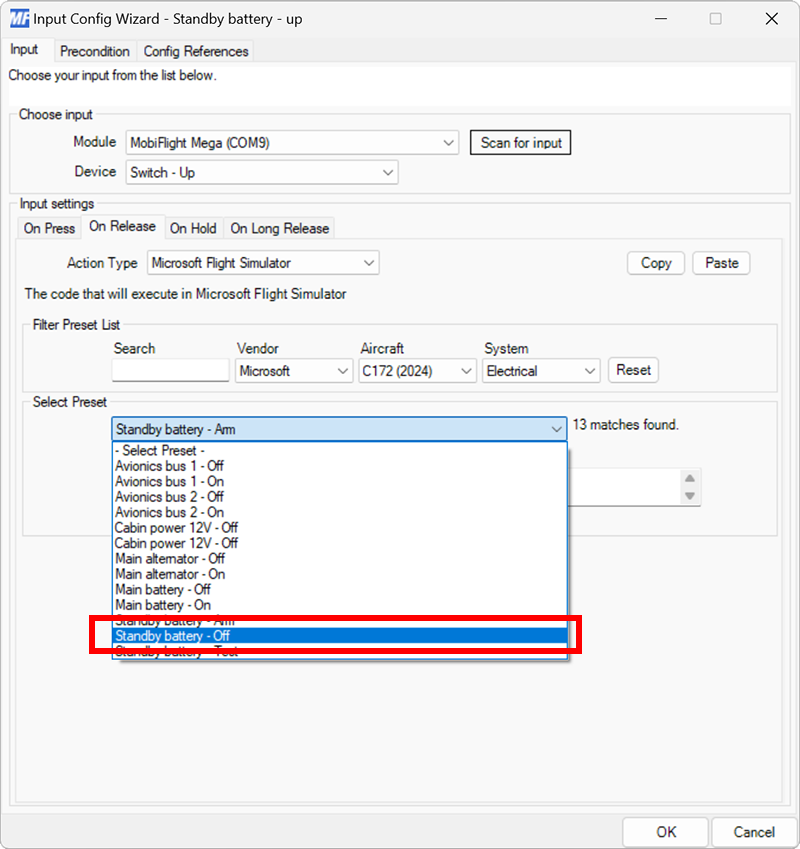
Close the dialog and name the config
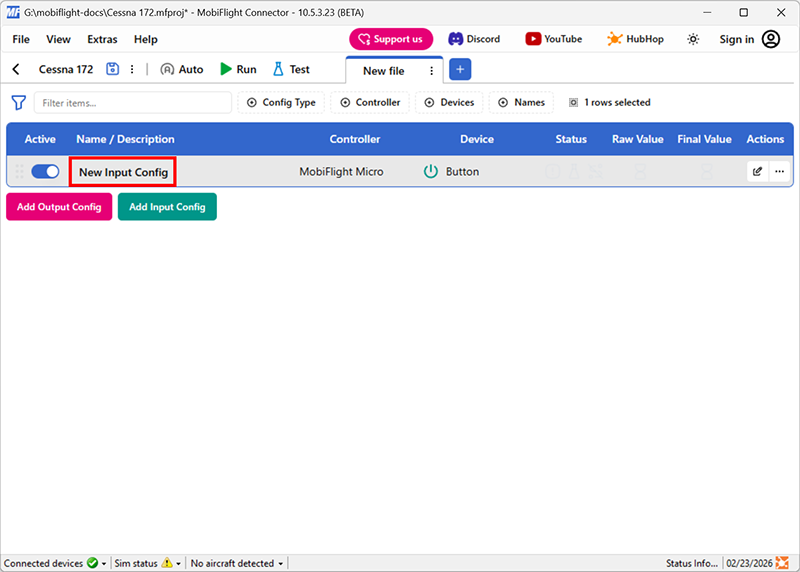
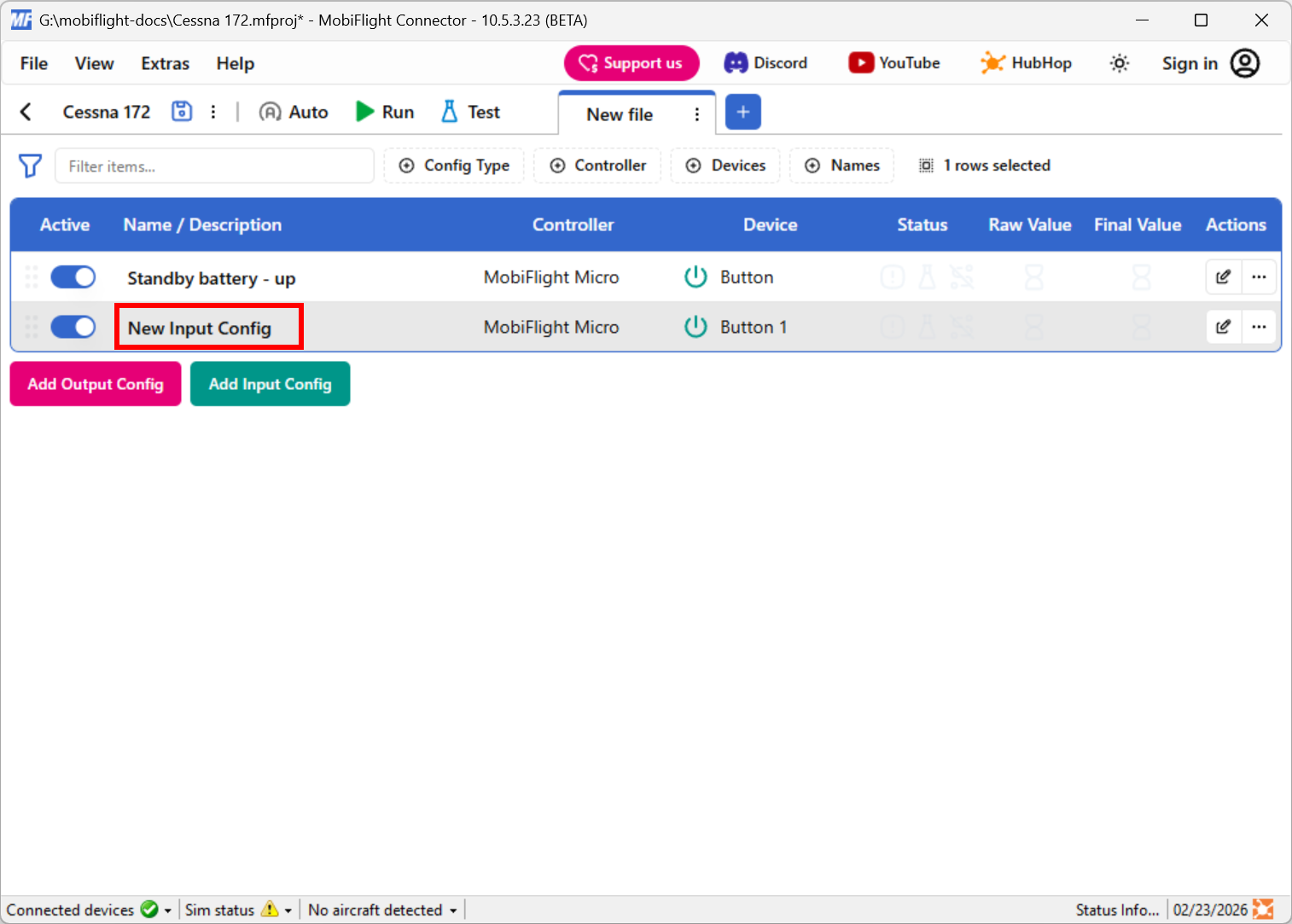
Click the OK button to close the dialog, then double-click on the New Input Config name in the main window.
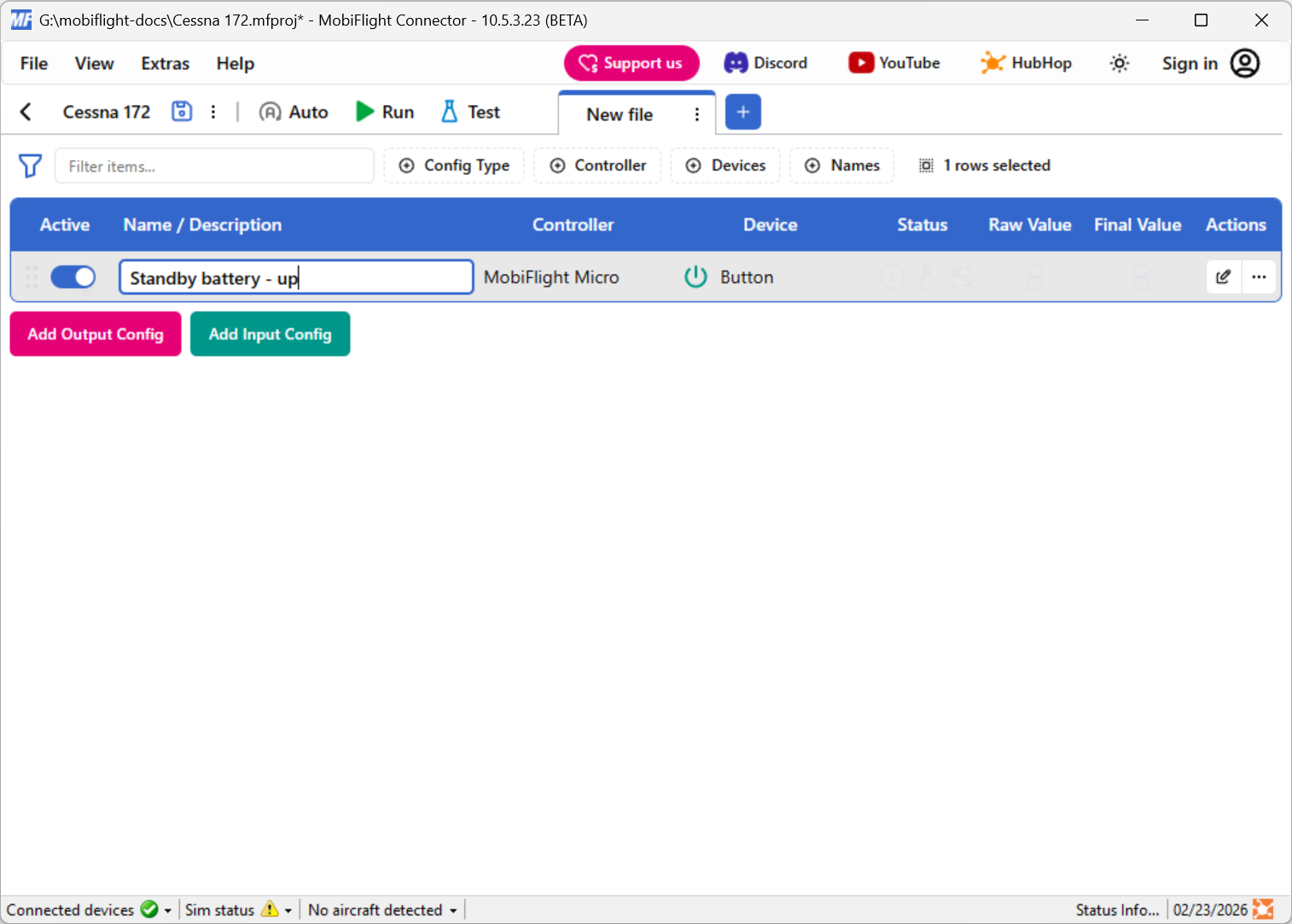
Type in a meaningful name for the new config, for example Standby battery - up, and press enter to apply the change.
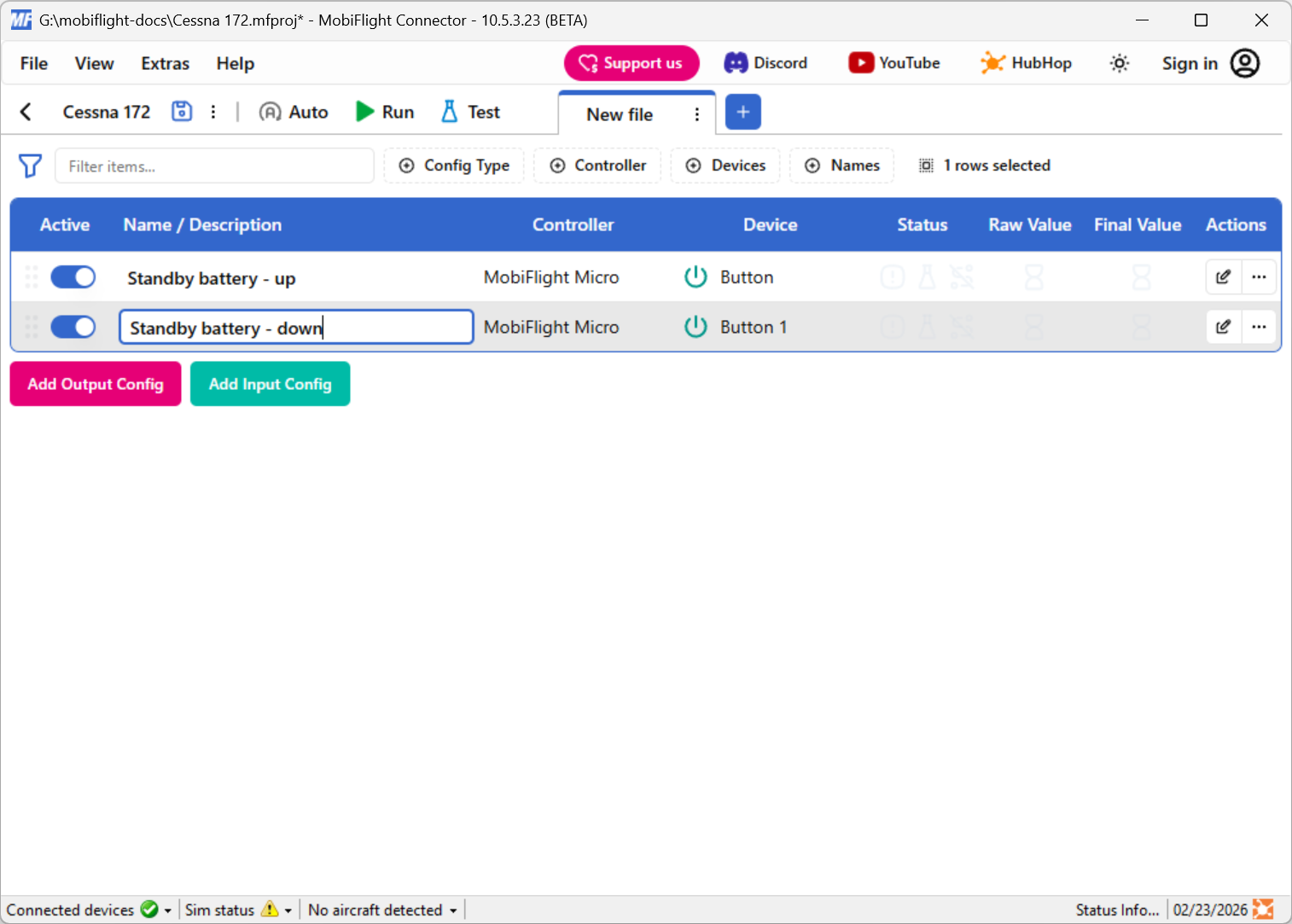
Try out the events
After configuring both inputs, spawn an airplane in Microsoft Flight Simulator.
Make sure the MobiFlight Run button is clicked in the toolbar, then try moving the switch to the three different positions to control the standby battery switch. The switch in the simulator should move to match the physical switch position.
Note
When activating the TEST position, the switch in the simulator will automatically return to the OFF position after a short delay. This is expected, as the simulator treats the TEST position as a momentary switch.